Integration with Zoho Books
Integrating Metarelic People with Zoho Books allows you to seamlessly sync payroll data with your accounting system, ensuring accurate financial reporting and compliance. Follow the steps below to connect and configure your integration.
Connecting to Zoho Books from Metarelic People
To connect:
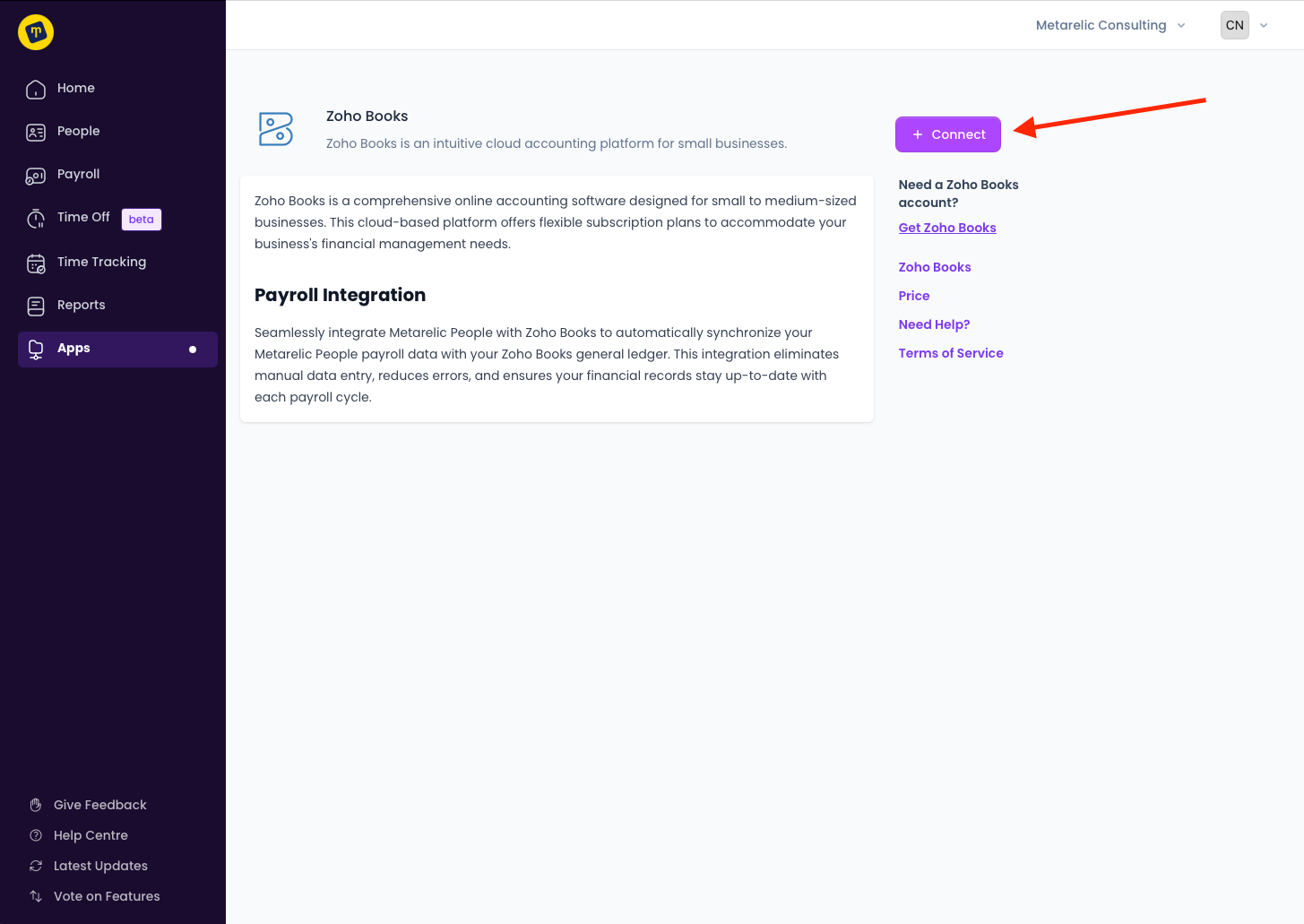
Navigate to Apps in Metarelic People
Locate Zoho Books and click Connect
Log in to your Zoho Books account and authorise the integration
Once connected, you will be redirected back to Metarelic People, where you can select the specific company you manage.
Set Up Your Payroll Mapping
To ensure accurate data transfer, map payroll elements from Metarelic People to Zoho Books accounts:
Navigate to Apps in Metarelic People
Locate Zoho Books
By default, the Mapping tab is selected. Match each payroll component(e.g. salary, bank, taxes) to the corresponding Zoho Books ledger. The configuration is auto-saved.
Customizing Sync Settings
After connecting, customise how data flows between Metarelic People and Zoho Books
Auto-Sync: Enable automatic data sync or choose manual sync for more control.
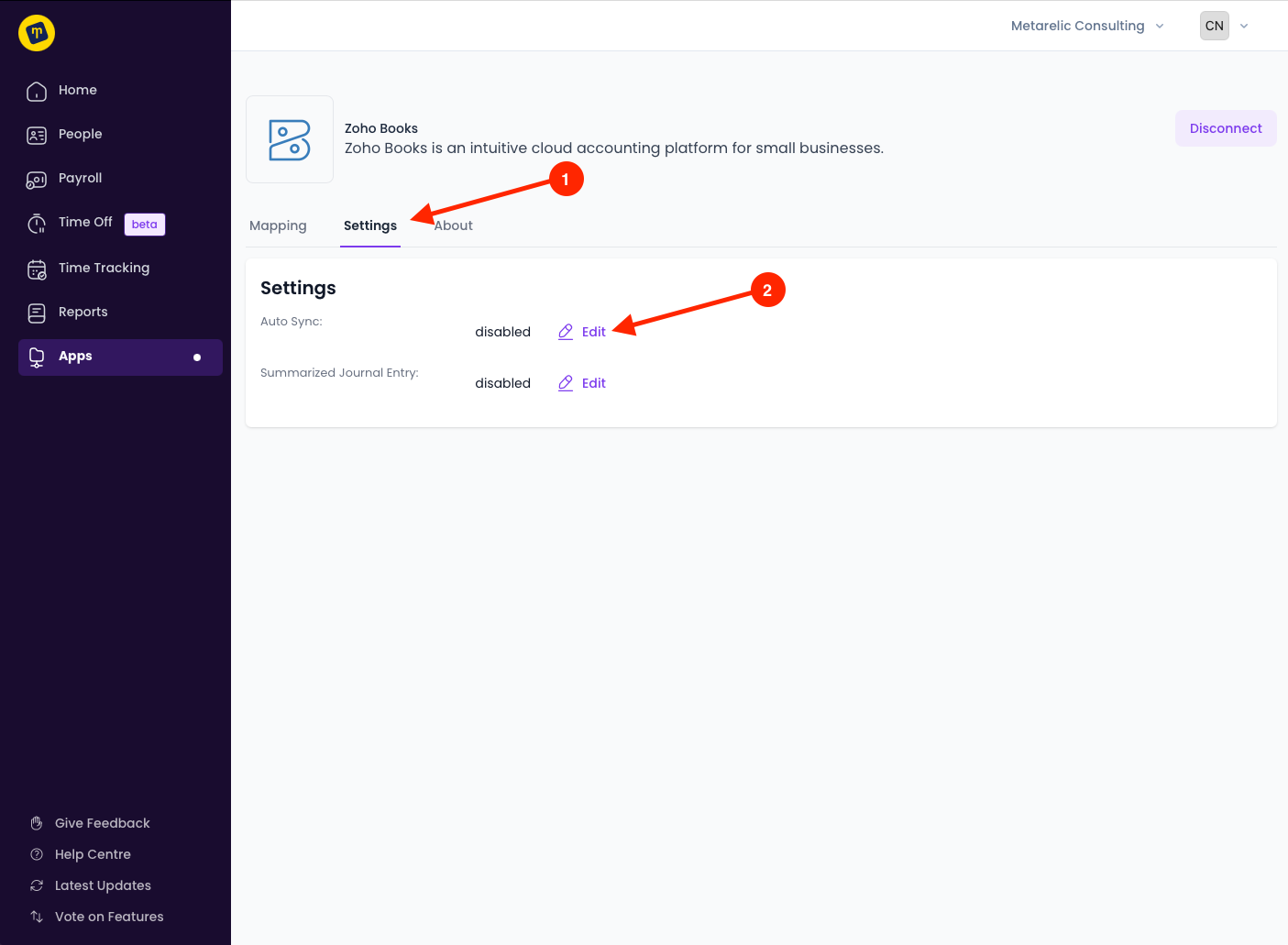
Navigate to Apps in Metarelic People
Locate Zoho Books > Settings
Click Edit on Auto Sync. A modal will appear
Choose Auto Sync or Manual Sync to update the sync settings
Click Save
Consolidation Journal Entries
For simplified bookkeeping, Metarelic People can generate consolidated journal entries, which record payroll in summarized form instead of individual transactions.
To enable or disable consolidated journal entries:
Navigate to Apps in Metarelic People
Locate Zoho Books > Settings
Next to "Summerize Journal Entry" click Edit.
Choose enable or disable to update the sync settings
Click Save
Syncing Payroll
Once you've connected to Zoho Books from Metarelic People, follow these steps to sync any payroll from Metarelic People to Zoho Books manually. This also works for any payrolls you need to sync retroactively:
Go to Payroll > History
Select a pay run to view
Select Actions
Under the integrations section, click Sync to Zoho Books
Note: If Autosync is enabled, the data will automatically push over when you process payroll.
Note: If you do not see the Sync to Zoho Books button, confirm your integration is still actively set up and is not disconnected.